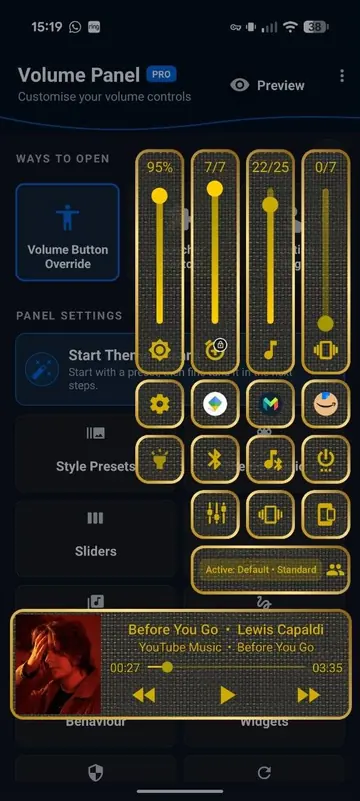
Styles hub
Volume Control Panel styles and VPB presets.
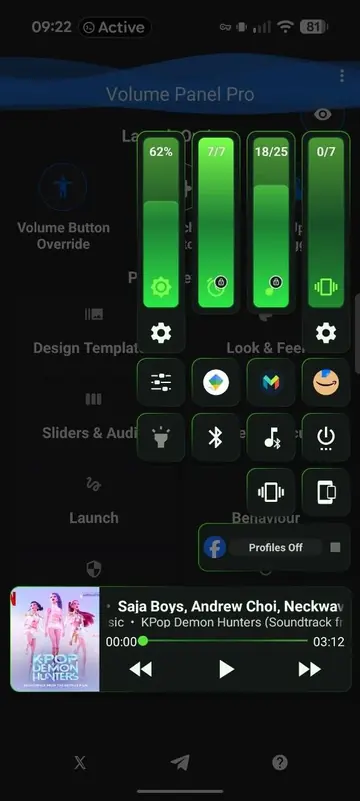
Choose a style, tap Download, then import the .vpb file into Volume Control Panel. Every preset is shown once in the grid below.
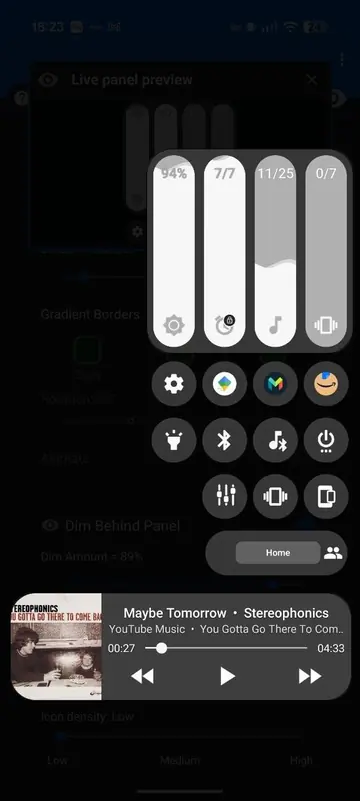
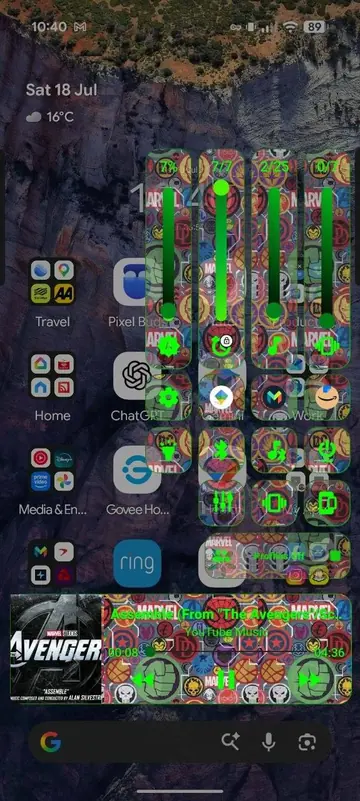
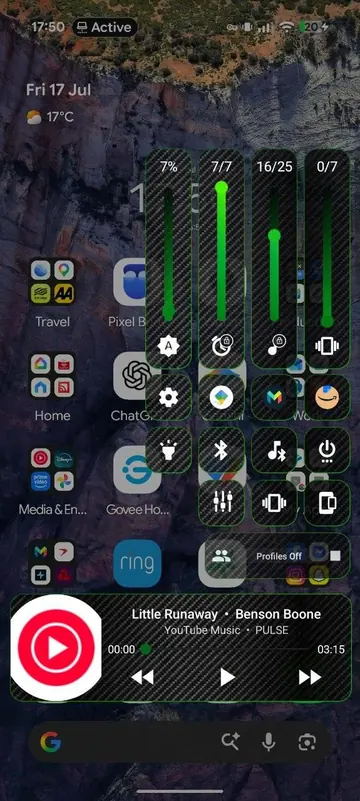
Import guide
How to use a VPB preset.
Download the .vpb file, then import it through Volume Control Panel when you are ready. If Android offers to open it straight away, choose Volume Control Panel or save it and import it from the app.
Download the preset
Save the .vpb file from this page on the Android device where Volume Control Panel is installed.
Open Import Configuration
In Volume Control Panel, open settings and choose Import Configuration to pick the downloaded preset file.
Choose Theme Only
If you only want the look, choose Theme Only so the style comes in without changing the rest of your setup.
Tune it in Theme Studio
Adjust colours, gradients, surface images, slider size, icon density and layout until the panel matches your phone.

Theme Wizard and Theme Studio
Use presets as a starting point, not a dead end.
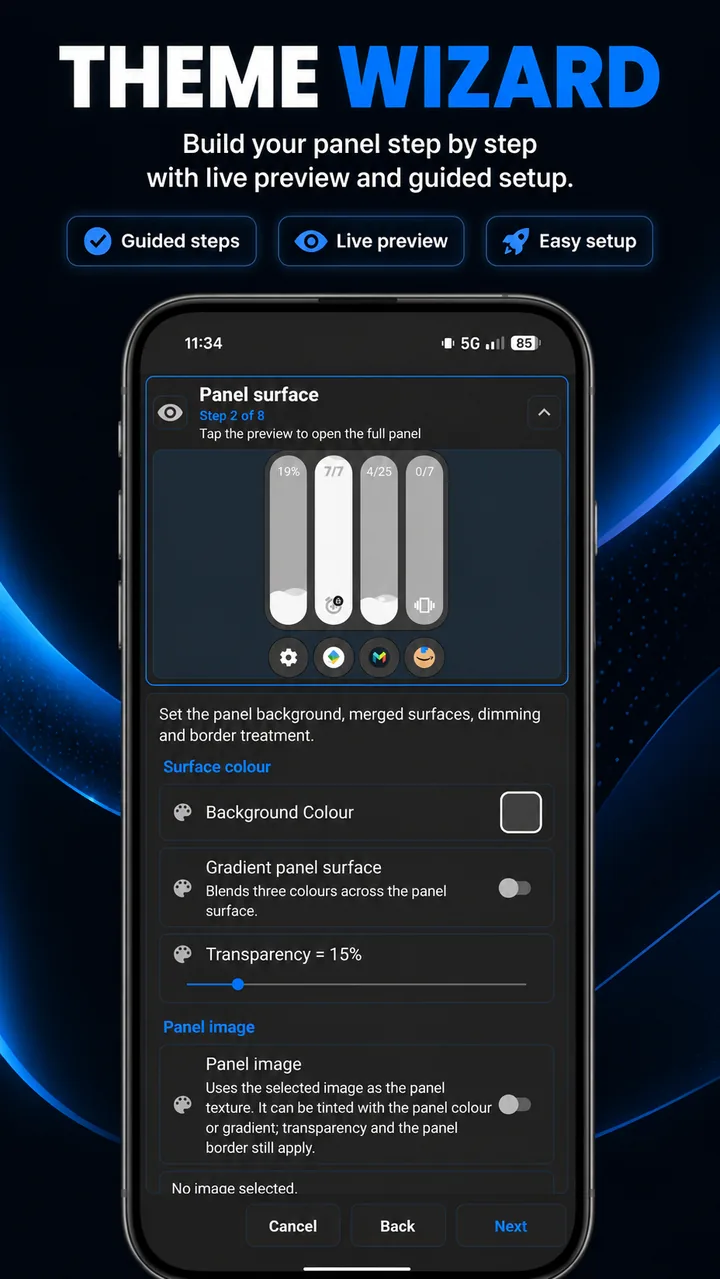
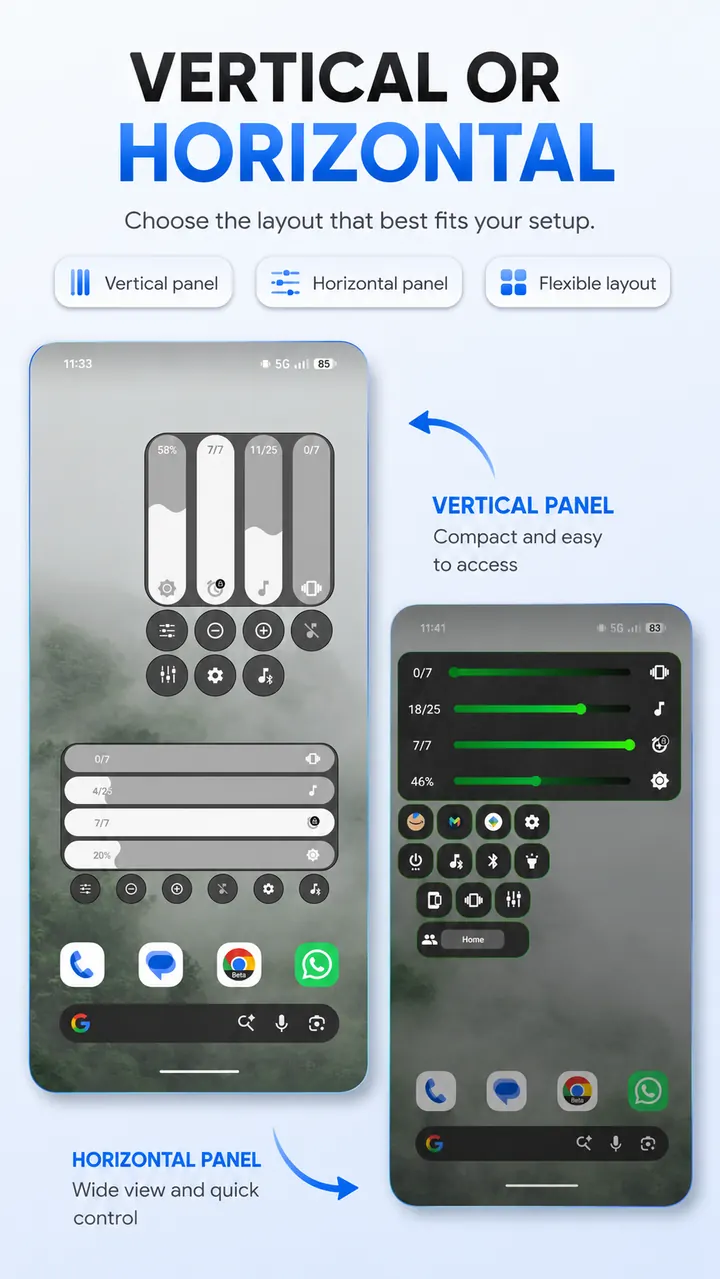
Theme Wizard helps you build a coherent Android volume panel quickly. Theme Studio is where you get into the detail: slider shape, text density, surface images, textures, tint, gradients, borders, layout and matching widgets.
Guided setup
Start with a guided flow and live preview so the panel is usable before you spend time tweaking every detail.
Matching widgets
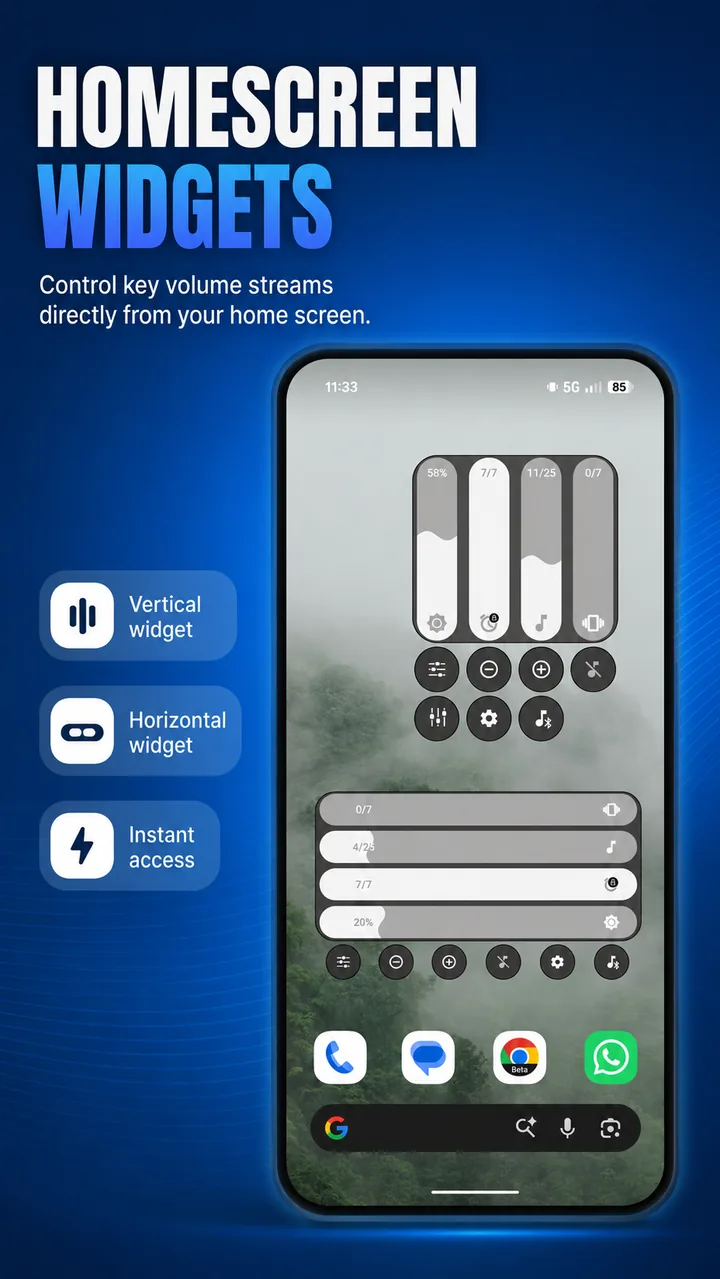
Use panel-styled home-screen volume widgets so your main controls and launcher controls feel like part of the same setup.
Share and refine
Download styles here, follow the Telegram presets channel for more ideas, and use imported designs as the base for your own look.