Quick answer
- Android limits background work to protect battery life.
- Some manufacturers go further and kill services, delay alarms or stop apps after the screen turns off.
- Don’t Kill My App documents a lot of this manufacturer-specific behaviour.
- If reminders, widgets or overlay triggers stop working, battery settings are one of the first things to check.
It is natural to blame the app first when a reminder is late, a widget stops updating or an overlay disappears after the screen has been off. Sometimes the app has a bug. Sometimes Android, or the phone manufacturer, has quietly put the app into a restricted state.
This is the problem Don’t Kill My App has documented for years: many Android manufacturers add non-standard battery management that can stop apps from doing expected background work, even when the app uses standard Android APIs.
Why phones restrict background work
Battery life matters. Android uses Doze, App Standby and background optimisation to reduce unnecessary work when the phone is idle. That is sensible for apps that are syncing, polling or doing work the user does not need right now.
The problem starts when the work is something the user is waiting for: a reminder notification, an alarm, a persistent control, a widget update or a service that responds to a physical button. If the phone treats that as disposable, the feature looks unreliable.
Manufacturer battery savers can be stricter
On some devices, settings such as restricted battery mode, sleeping apps, deep sleep, app launch management, auto-start controls or background limits can stop an app from starting after boot, running a foreground service, receiving alarms or updating on time. The wording changes from phone to phone, which does not make support any easier.
That is why advice from one device does not always apply to another. Pixel, Samsung, Xiaomi, HONOR, Huawei, OnePlus and other devices can expose different power controls. A user who has already checked the standard Android battery page may still need to check a manufacturer power manager.
What users can try
- Open Android settings for the app and check App battery usage.
- Move the app away from Restricted mode where the feature needs reliable background behaviour.
- Check manufacturer settings such as sleeping apps, deep sleeping apps, app launch, auto-start or background limits.
- Allow notifications and alarms where the app explains that reminders need them.
- Open the app after system updates, restore, reinstall or battery-manager changes.
- Use Don’t Kill My App for vendor-specific steps and background reliability checks.
What developers should do
Developers cannot fix every manufacturer battery policy, but they can make apps more resilient. Store important state, reschedule reminders after reboot, use foreground services only when appropriate, avoid wasteful loops, explain settings clearly and fail visibly when Android blocks something.
Good apps should also avoid over-asking. Telling every user to disable battery optimisation for everything is not respectful. The app should ask for extra battery freedom only when the feature depends on it.
How this affects LeeDrOiD Labs apps
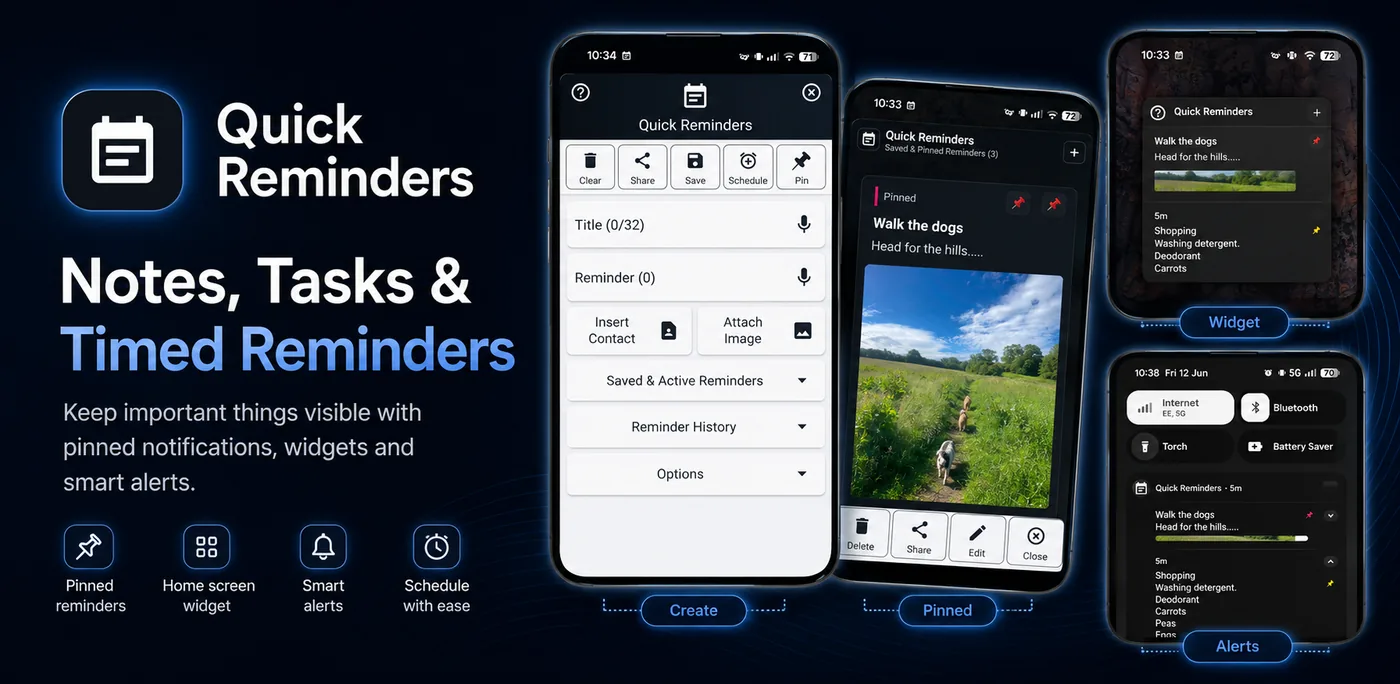
Quick Reminders can be affected if the phone blocks notifications, exact alarms, boot recovery or background scheduling. Volume Control Panel can be affected if an OEM aggressively stops services used for overlays, triggers or persistent controls. In both cases, the phone's battery settings can matter as much as the app's own settings.
Bottom line
Background killing is one of Android's least visible support problems. The user sees a missed reminder or a stopped service. Underneath, the phone may be enforcing a battery policy that changed after an update, restore or manufacturer optimisation pass. The fix is usually a mix of robust app design and clear device-specific setup.