Quick answer
- Android volume widgets run inside the launcher, not inside the app itself.
- Widgets use RemoteViews, so custom touch handling and live slider dragging are limited.
- Media, ring, notification, alarm and call volume do not behave the same on every Android version or device.
- Reliable widgets usually favour clear tap regions and accurate system state over fake live sliders.
People search for an Android volume widget because the stock volume panel is often awkward. The buttons are on the wrong side, the slider disappears too quickly, or the phone is mounted, folded, docked or connected to Bluetooth. A widget sounds simple: put volume controls on the home screen.
In practice, a widget is not a normal app screen. It is a small interface published by one app and displayed by another app, usually the launcher. That makes it handy, but it also means stricter rules.
Widgets are not normal app views
Traditional Android app widgets are built with RemoteViews. That lets the launcher display a view hierarchy from another app process, but it also limits what the widget can contain and how it can respond. A normal custom slider can track every drag movement. A home-screen widget is better suited to intentional actions such as tapping a row, raising volume, lowering volume, muting a stream or opening the full panel.
That is why dependable Android volume widgets often use button-like controls rather than pretending to be a fully live slider. The design can still feel like a slider, but the interaction has to match what the widget host can handle reliably.
Android volume is split into streams
Another trap is assuming there is one system volume. Android exposes different audio streams, including media, ring, alarm, call and system-related streams. Some devices link ring and notification volume. Some manufacturers expose notification volume differently. Some changes are restricted by ringer mode, Do Not Disturb access, active call state or the current audio route.
A serious custom volume panel or volume widget should read the actual system value after a change, rather than just drawing the value the user asked for. If Android clamps the value, changes the route, blocks a stream or merges streams, the widget should follow the real device state.
Bluetooth and media routes add another layer
When audio is routed through Bluetooth headphones, a speaker, casting device or remote playback session, the apparent volume may not map neatly to the phone speaker volume. Media sessions can also provide their own volume handling. A volume control app can make controls easier to reach, but it should not pretend every route is controllable in the same way on every device.
That is especially important for users who swap between phone speaker, earbuds, car audio and smart speakers. The best experience is not a dramatic promise. It is a widget that updates clearly, fails safely and sends the minimum necessary audio command.
Launcher sizing matters
Home screens vary. Samsung, Pixel Launcher, Nova Launcher, foldables, tablets and desktop-style modes all size widgets slightly differently. A widget that looks clean at 4x1 might become cramped at 2x1, too tall at 4x2, or oddly cropped at high font scale. Android 12 and later improved widget sizing, but robust widgets still need sensible layouts and minimum sizes.
For a volume widget, the critical details are tap target size, stream label readability, icon clarity and avoiding controls that shift when the value changes. A tiny, pretty widget that causes accidental volume jumps is worse than a slightly larger widget that behaves properly.
What a reliable volume widget should do
- Show media volume clearly, because it is the most common everyday stream.
- Offer ring, alarm and notification controls where Android and the device support them.
- Use stable tap targets that do not move while the user is interacting.
- Read back real stream values after changes instead of guessing.
- Handle launcher resizing, large fonts, dark mode and narrow home-screen cells.
- Open a fuller control panel when the user needs more than a widget can safely provide.
How Volume Control Panel fits in
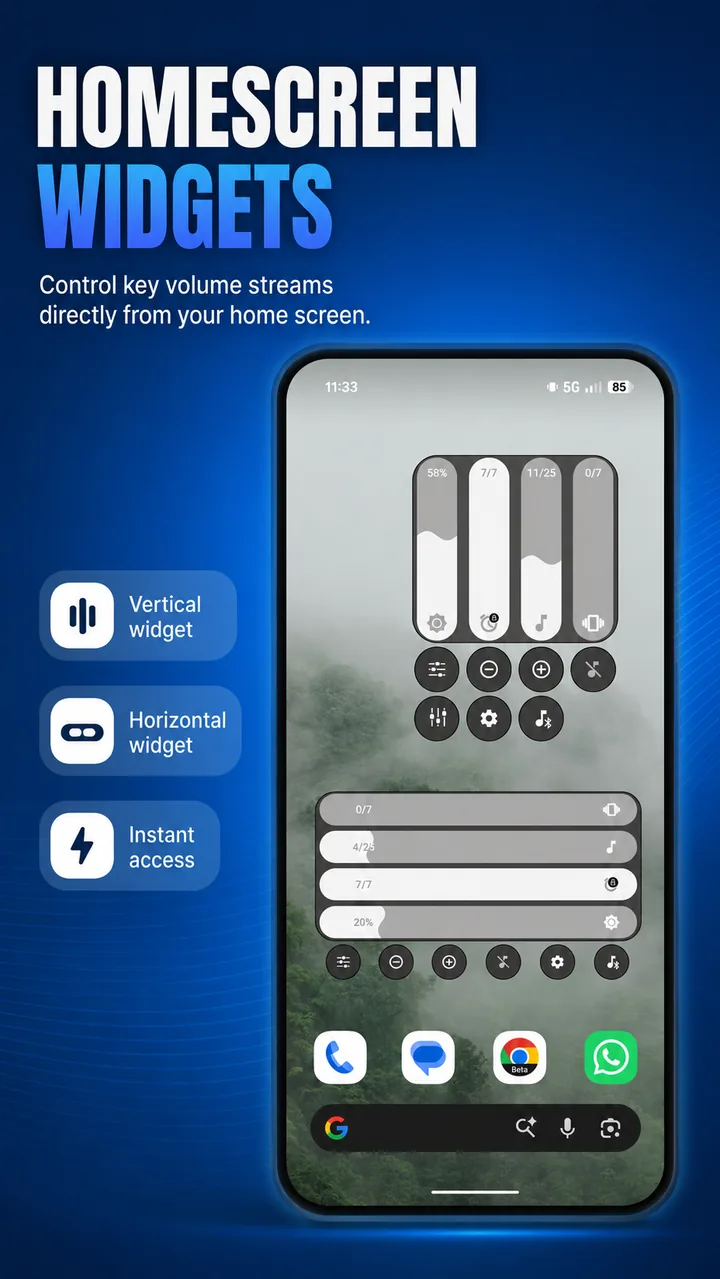
Volume Control Panel includes horizontal and vertical home-screen volume widgets alongside the full custom Android volume panel. The widgets are designed around reliable tap regions and real system volume state, while the main panel handles richer controls such as audio profiles, stream locking, media controls, shortcuts and Theme Wizard styling.
Bottom line
A good Android volume widget is less about drawing a slider and more about respecting the system around it. The launcher owns the surface, Android owns the audio state, the device manufacturer may add extra rules, and the app has to make all of that feel simple. When it works well, it feels obvious. Getting there takes care.